

Piso WiFi Pause Time: What Does It Actually Do?
You have 45 minutes left on a Piso WiFi session, but you need to step away for lunch. If you simply leave the connection running, the timer may continue counting down even though you are not using the internet. That is exactly where Piso WiFi Pause Time becomes useful.
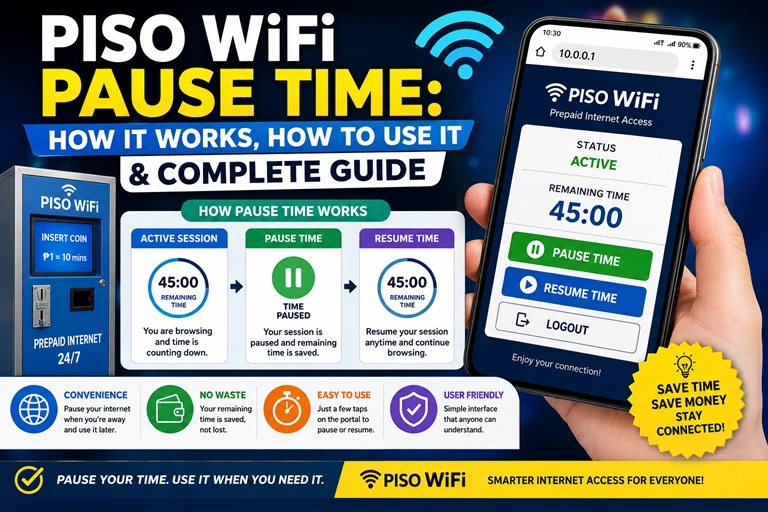
Pause Time allows an eligible active session to be temporarily stopped so the remaining paid internet time can be preserved for later use. On many systems, the user opens the local Piso WiFi portal, commonly through 10.0.0.1, selects the pause option, and then resumes the session when ready. The exact availability, limits and behavior depend on the machine’s software and settings.
For someone paying by the minute, this is a surprisingly useful feature. Instead of wasting prepaid time while answering a call, eating, traveling a short distance or taking a break, you can pause the session when the system allows it.
Quick Summary
- Piso WiFi Pause Time temporarily stops an active internet session’s countdown.
- Users commonly access the session portal through 10.0.0.1 when that address is configured by the vendo system.
- Tap Pause Time or a similarly named button to stop the session.
- Tap Resume Time when you want to continue browsing.
- The remaining time normally continues from the saved balance rather than starting over.
- Pause functionality is not guaranteed on every Piso WiFi machine.
- Operators can configure whether the feature is available and may impose limits such as pause duration, session validity or eligibility.
- If the Pause button is missing, the feature may have been disabled or configured differently by the vendo owner.
What Is Piso WiFi Pause Time?
Piso WiFi Pause Time is a session-management feature found on many coin-operated or voucher-based Piso WiFi systems in the Philippines. Its purpose is straightforward: stop the countdown temporarily without throwing away the unused portion of a paid session.
Imagine that you purchase 60 minutes. After browsing for 20 minutes, you decide to leave. If Pause Time is available and you activate it correctly, the system can place your session into a paused state. Your remaining balance would then be available when you return, subject to the machine’s configured rules.
This is different from simply disconnecting your phone from WiFi.
Disconnecting does not necessarily tell the Piso WiFi system that you want to preserve your session. The important action is using the portal’s Pause function when it is available.
Different Piso WiFi installations can behave differently because operators may use different software, firmware and configurations. Some systems can also impose conditions on how long a session may remain paused or when it expires.
Why Is Pause Time Useful?
The feature is particularly helpful for people who buy longer sessions and do not want every minute to disappear while they are away.
For example:
- A student pauses the connection before attending a short class.
- A commuter pauses before boarding a vehicle.
- A worker pauses during a lunch break.
- A customer pauses while taking a phone call.
- A gamer pauses a session when taking a break.
- A user can preserve unused prepaid time instead of leaving the connection active.
For the operator, it can also improve the customer experience. A small feature like this can make a particular Piso WiFi vendo more convenient than a competing machine that offers only uninterrupted countdown time.
How Does Piso WiFi Pause Time Work?
The underlying idea is easier to understand if you think of the session as having two states: active and paused.
When you purchase internet access, the Piso WiFi system creates or updates a session associated with your device and assigns a time balance. While the session is active, the timer counts down according to the machine’s rules.
When you select Pause Time, the system changes the session state and stops normal internet access. The remaining session balance is retained according to the system’s configuration. When you select Resume, the system changes the session back to active and the countdown continues.
A simple example makes this clearer.
Suppose you purchase 60 minutes.
After 25 minutes:
60 minutes − 25 minutes = 35 minutes remaining
You tap Pause Time.
The session is now paused, so those remaining 35 minutes are intended to remain available rather than continuing to count down during the pause.
Later, you return and tap Resume Time. If the session is still valid, you can continue using the remaining balance.
The key phrase here is “if the session is still valid.” Pause does not necessarily mean that your session can be stored forever. The operator’s configuration may determine the maximum pause period, session expiry and other restrictions.
Does Pause Time Save Your Remaining Minutes?
In a properly configured system, that is the purpose of the feature. However, users should not assume that every Piso WiFi vendo follows identical rules.
Some systems may have restrictions involving:
- Maximum pause duration
- Session expiration
- Minimum remaining time
- Number of pauses
- Supported payment or package types
- Device/session identification
- Software or firmware behavior
So if a particular vendo displays different instructions, follow the information shown on that machine’s portal.
How to Use Piso WiFi Pause Time Through 10.0.0.1
For many Piso WiFi installations, 10.0.0.1 is used as the local portal address. It is not a universal address for every network, but it is commonly associated with Piso WiFi setups.
Here is the normal user workflow.
Step 1: Connect to the Piso WiFi Network
Open WiFi settings on your phone, tablet or laptop and connect to the network provided by the Piso WiFi vendo.
The network name depends on the machine and operator.
Step 2: Open the Captive Portal
After connecting, your device may automatically display a sign-in or Piso WiFi portal notification.
If it does not, open your browser and enter:
Use the address bar rather than typing the address into a search engine.
If the machine uses a different gateway, 10.0.0.1 may not open. In that situation, the correct local address depends on the actual network configuration.
Step 3: Check Your Active Session
Once the portal loads, look for information such as:
- Remaining time
- Session status
- Insert Money
- Pause Time
- Resume Time
- Connection status
The wording can differ between systems.
Step 4: Select Pause Time
If the feature is enabled, tap Pause Time.
Your connection should be suspended and the session timer should stop according to the system’s configuration.
Do not simply close the browser and assume the session has been paused. Look for confirmation from the portal.
Step 5: Resume Your Session Later
When you are ready to browse again, reconnect to the Piso WiFi network if necessary and open the portal.
Select Resume Time or the equivalent resume control.
If your session has not expired and the system recognizes it correctly, your remaining time should become active again.
Why Is the Piso WiFi Pause Button Missing?
This is one of the most common questions surrounding the feature.
If you open the Piso WiFi portal and cannot find Pause Time, it does not automatically mean that your phone or browser is malfunctioning.
The operator may have disabled the feature.
Piso WiFi systems can be configured differently, and the available controls depend on the software and settings used by the vendo. Some installations may also apply pause functionality only to particular session types or under specific conditions.
Common Reasons Pause Time Is Unavailable
1. The owner disabled it
The vendo operator controls many aspects of session management. If Pause Time has been turned off, users will not see the option.
2. Your session type does not support it
Some configurations may apply different rules to different packages, payment methods or account/session types.
3. Your session has expired
A pause function is generally intended for an active, valid session. If the session has already ended, there may be nothing left to pause.
4. The portal has a configuration restriction
The owner may have configured minimum remaining time, maximum pause duration or other restrictions.
5. Temporary network or portal problem
A local connectivity issue can prevent the portal from displaying or processing session controls correctly.
Troubleshooting Piso WiFi Pause Time Problems
If Pause Time does not work, start with the basics before assuming your remaining minutes are gone.
The 10.0.0.1 Page Will Not Open
First, confirm that your device is connected to the correct Piso WiFi network.
Then enter http://10.0.0.1 directly into the browser address bar.
If the page still does not load, the vendo may use a different local gateway, or the machine/network may temporarily be unavailable. The 10.0.0.1 address is common but is not an Internet-wide standard for every Piso WiFi setup.
The Pause Button Is Not Visible
Check whether your session is active and whether the machine displays any session restrictions.
If there is no Pause button at all, the most likely explanation is that the operator has disabled the feature or configured the portal differently.
Pause Was Pressed but the Timer Keeps Running
Do not immediately assume that the pause succeeded.
Return to the portal and check the displayed session status. If the timer continues decreasing, contact the vendo operator rather than repeatedly pressing buttons.
You Cannot Resume the Session
Check whether you are connected to the same Piso WiFi network and whether your session is still within its allowed validity period.
A paused session can still be subject to expiration rules. The exact behavior depends on the system and configuration.
What Piso WiFi Owners Should Know About Pause Time
For operators, Pause Time is more than a convenience button. It is a session-management setting that needs to match the business model.
An owner might choose to allow pauses because customers often step away from a vending location. On the other hand, unrestricted or poorly configured pause periods can create operational complications.
Before enabling the feature, an operator should understand:
Set a Sensible Pause Policy
Decide how long a session can remain paused and whether paused sessions eventually expire.
A short, clearly defined pause policy can be easier for customers to understand than an unlimited session that remains valid indefinitely.
Make the User Interface Clear
If customers cannot find the Pause button, they may assume the feature does not exist.
The portal should clearly show:
Remaining Time → Pause Time → Resume Time
Clear labels reduce confusion and support requests.
Test Before Making Changes Live
After changing session settings, test the process with an actual client device.
Check whether:
- A new session starts correctly.
- The timer counts down.
- Pause stops the session as expected.
- The remaining balance is retained.
- Resume restores access.
- The session eventually expires according to the intended policy.
This is especially useful because Piso WiFi deployments can differ in software and configuration. Guides that describe one particular interface should not be treated as universal instructions for every vendo machine.
Is Piso WiFi Pause Time Safe to Use?
Yes, the Pause feature itself is designed as a normal session-management function. The bigger issue is using the correct local portal and following the controls provided by the actual Piso WiFi machine.
Users should avoid entering administrator credentials into random websites claiming to provide a “Piso WiFi login.” The customer-facing session portal and an operator’s administrative interface are not necessarily the same thing.
For ordinary users, there is generally no reason to change router settings or attempt to access administrator controls just to pause a paid session.
The safest approach is simple: connect to the intended Piso WiFi network, use the portal provided by the vendo, and use the Pause/Resume controls exposed to customers.
Frequently Asked Questions
What is Piso WiFi Pause Time?
Piso WiFi Pause Time is a feature that temporarily stops an eligible prepaid internet session so the remaining time can be used later. Availability and limits depend on the Piso WiFi system and operator configuration.
How do I pause my Piso WiFi time?
Connect to the Piso WiFi network, open the local portal—commonly 10.0.0.1—and select Pause Time if the option is available. The session should then enter a paused state.
Why can’t I see Pause Time on Piso WiFi?
The vendo owner may have disabled the feature, your session may not support it, or the machine may use different session rules. Not every Piso WiFi installation provides identical pause controls.
Can I resume my Piso WiFi session later?
Usually, if Pause Time is enabled and the session remains valid, you can return to the portal and select Resume Time. The exact resume period and expiration rules depend on the system configuration.
Final Thoughts
Piso WiFi Pause Time solves a simple problem: prepaid internet time should not necessarily disappear while you are temporarily away. When the feature is enabled, pausing your session through the Piso WiFi portal can preserve the remaining balance for later use.
For users, the process is straightforward—connect, open the local portal, check your remaining time, select Pause, and Resume when you return. For operators, the important part is configuring the feature with sensible session and expiration rules.
If the Pause button is missing, don’t assume something is wrong with your phone. The feature may simply be disabled or configured differently on that particular Piso WiFi vendo.