


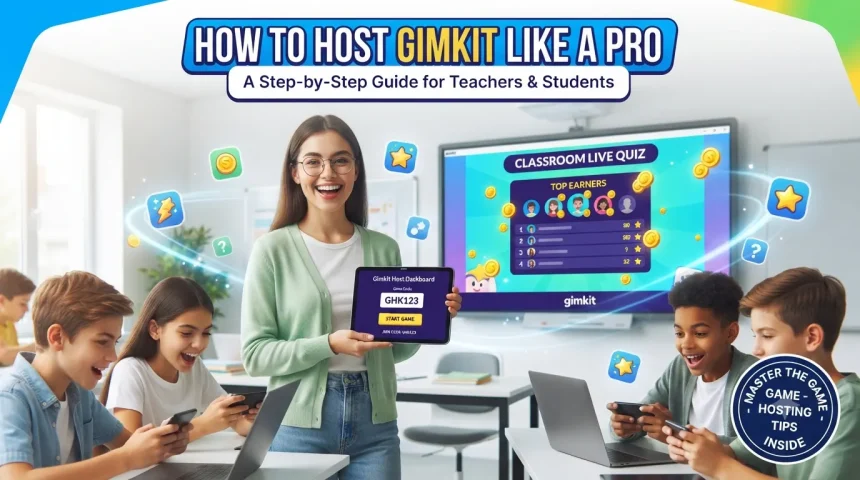
Gimkit Host is the teacher-side feature used to start and manage live Gimkit games in a classroom. A host selects a kit, chooses a game mode, configures the game settings, shares a game code or join link with students, and starts the session. Students can then join through Gimkit’s official join page.
If you’re new to Gimkit, the process is fairly straightforward. The main thing to understand is the difference between hosting a game and joining a game: the teacher or educator controls the live session, while students use the provided code, QR code, or link to enter.
Quick Answer: What Is Gimkit Host?
Gimkit Host is the live-game control system for educators. To host a game, choose a kit, click Play Live, select a game mode, configure the available options, and share the generated game code or join link. Students go to Gimkit’s join page, enter the code, and wait in the lobby until the host starts the game.
What Is Gimkit Host?
Gimkit is a classroom learning platform built around question-based games. A host is essentially the person running the live session, usually the teacher.
The host controls the setup before the game begins and has management options while students are playing.
The basic hosting flow is:
- Choose a kit.
- Select Play Live.
- Choose a game mode.
- Configure game options.
- Share the game code, QR code, or join link.
- Wait for students to enter the lobby.
- Click Start Game.
That’s the core process described in Gimkit’s current official help documentation.
Do You Need a Gimkit Account to Host?
Yes. Gimkit says educators need an account to create kits and host games.
Creating a Gimkit account is free, and Gimkit currently offers a free Gimkit Basic option for educators. New educator accounts also receive a 14-day Pro trial before being moved to Basic if they don’t continue with Pro.
Students are different. Gimkit says students don’t need accounts to participate in live games or assignments.
That makes the setup relatively simple for a classroom: the teacher manages the game, while students can join without creating individual accounts.
How to Host a Gimkit Game
If you’re looking for the exact Gimkit Host steps, here’s the process.
Step 1: Log In to Gimkit
Start by signing into your educator account.
From the dashboard, locate the kit you want to use. A kit is the collection of questions that powers your review game.
If you haven’t created one yet, Gimkit provides an option to create a new kit and add your own questions.
Step 2: Click Play Live
Find the kit you want to use and select Play Live.
You can also open a kit and choose the live-play option from there.
This takes you to Gimkit’s Mode Picker, where you can choose how students will interact with the questions and game mechanics.
Step 3: Choose a Game Mode
Gimkit has multiple game modes, and the available experience depends on the mode you select.
Some modes focus more heavily on competition, while others involve teamwork, exploration, or different game mechanics.
The Mode Picker lets you review the available options before continuing.
For example, Gimkit currently documents modes such as:
- Snowbrawl
- Blastball
- One Way Out
- Snowy Survival
- Don’t Look Down
The list of available modes can change, so it’s better to check your own Mode Picker rather than relying on an old list from another website.
Step 4: Configure Game Options
After selecting a mode, Gimkit takes you to the game options screen.
Depending on the mode, you may be able to configure settings such as:
- Game goals
- Time limits
- Whether students can join late
- Class connections
- Nickname Generator
- Mode-specific settings
Not every mode has exactly the same controls. Gimkit specifically notes that game options vary by game mode.
This is one step worth slowing down for. If you’re teaching a younger group, for example, reviewing nickname and joining settings before students enter can make the session easier to manage.
How Do Students Join a Gimkit Host Game?
Once the game is ready, Gimkit generates a game code.
Students have several ways to join:
- Enter the game code at gimkit.com/join
- Scan the host’s QR code
- Use the direct join link shared by the host
Gimkit’s official instructions say students can enter the game code at its join page and then enter their name, or accept a generated nickname if the host has enabled Nickname Generator.
The host can display the code on a projector or classroom screen while students join.
Where Do I Find the Gimkit Game Code?
The game code appears in the live-game lobby.
For 2D game modes, Gimkit says the code is visible in the upper-right area of the host screen. Clicking or hovering over the code can provide additional options, including displaying the QR code or copying a direct join link.
What Is Gimkit.com/Join?
Gimkit’s join page is where students can enter the code provided by their teacher.
The basic process is:
Teacher hosts → Gimkit generates code → Student visits the join page → Student enters code → Student joins lobby → Teacher starts game.
Students using a class connection may have a different joining experience when logged into Gimkit, according to Gimkit’s official instructions.
Can a Gimkit Host Use a QR Code?
Yes.
Gimkit supports QR codes for live games. While hosting, the teacher can hover over the game code to display the QR code.
Students can scan it with a compatible device and enter the game without manually typing the code. Gimkit also provides a button for copying a direct join link.
For a classroom with many students, this can save time. Instead of repeating a six-character code several times, you can simply project the QR code on the screen.
Can Students Join After the Game Starts?
Gimkit provides a Join in Late setting for live games.
According to its hosting documentation, live games default to allowing students to join late, but the host can toggle this setting when configuring the game.
Whether late joining makes sense depends on the classroom.
If a student is having connection problems, leaving the option enabled can be convenient. If you’re running a timed assessment or want everyone to begin together, you may prefer to turn it off.
What Can a Gimkit Host Control During a Game?
The host has several controls while a game is running.
For 2D games, Gimkit documents controls for:
- Viewing the game code
- Managing sound
- Displaying the leaderboard
- Viewing players
- Spectating players
- Removing players
- Ending the game early
- Adding time where supported
The exact controls can depend on the game mode and whether the host is participating as a player or spectating.
Can a Gimkit Host Remove a Student?
Yes.
Gimkit allows hosts to remove players from live games. This can be useful when an unexpected participant enters the game or when a student’s displayed name needs to be managed.
In some non-2D modes, hosts can also use Quick Actions to affect gameplay, including removing a player and adjusting certain player balances.
Can the Teacher Play Too?
In 2D Gimkit modes, the host can generally choose whether to participate as a player or act as a spectator.
Gimkit’s hosting documentation specifically describes a toggle that lets the host switch between joining as a player and joining as a spectator.
This gives teachers two practical approaches.
Play as a participant: You become part of the game.
Spectate: You stay focused on monitoring students and the classroom.
For a busy classroom, spectating can make management easier because you’re not trying to answer questions and monitor the session simultaneously.
How Many Students Can Join a Gimkit Game?
Gimkit’s hosting documentation currently states that its hard limit for students in a live game is 500 students. Actual performance can still depend on the devices and internet connections being used.
For a normal classroom, the practical concern is usually less about reaching the platform’s maximum and more about having stable connections on student devices.
If several students experience lag or fail to join, check the local network and device conditions before assuming the game itself is unavailable.
Does Gimkit Host Work on the Free Version?
Yes.
Gimkit states that educators can continue using the free Gimkit Basic version. Its account FAQ says Basic users can host games, create classes, and collect game reports without limitations, while Pro adds features such as Pro-exclusive game modes, assignments, audio questions, and image uploads.
The exact features available to you can depend on the current Gimkit plan and product changes, so check the account or pricing information inside Gimkit if a particular feature matters for your lesson.
Gimkit Host vs. Gimkit Join
The difference is simple:
| Feature | Gimkit Host | Gimkit Join |
|---|---|---|
| Main user | Teacher/Educator | Student |
| Starts the game | Yes | No |
| Selects game mode | Yes | No |
| Configures game options | Yes | No |
| Generates game code | Yes | No |
| Enters game code | No | Yes |
| Manages players | Yes | No |
| Controls game | Yes | No |
| Needs an account | Educator account required | Student account not required for live play |
The host creates and controls the experience. The student joins and plays.
Tips for Hosting a Smooth Gimkit Game
The technology is only half the battle. A few small classroom habits can make the session noticeably smoother.
Test the kit first
Open your kit before class and make sure the questions, answers, images, and settings are correct.
It’s much easier to fix a typo before 30 students are waiting in the lobby.
Choose the mode based on your objective
Don’t choose a mode simply because it looks exciting.
If the goal is quick revision, choose a format that keeps students answering questions regularly. If collaboration is the priority, consider a mode designed around teamwork.
Display the join information clearly
Put the game code or QR code somewhere every student can see.
If you’re using a projector, keep the lobby visible while students are joining.
Review names before starting
The lobby gives you an opportunity to identify unexpected or inappropriate names before the game begins.
Gimkit also offers its Nickname Generator for automatically assigned safe names in supported live-game setups.
Have a backup plan
Classroom Wi-Fi can be unpredictable.
If a student can’t join, first check whether the problem affects one device or multiple devices. That quickly tells you whether you’re dealing with a local device issue or a broader connection problem.
Common Gimkit Host Problems
Students can’t find the game
Make sure they’re using the current game code and the official Gimkit join page.
A stale code from a previous session won’t necessarily take students into the new game.
The game code isn’t visible
Check that you’ve actually started the live-game setup and reached the lobby. The code becomes available as part of the live hosting process.
A student joins with the wrong name
You can manage players from the host interface, including removing players where the mode supports it.
Students experience lag
Check the classroom network first.
Gimkit notes that game performance can depend on internet reliability and stability, particularly as the number of connected players increases.
Key Takeaways
- Gimkit Host is the teacher-side system for running live Gimkit games.
- Hosting starts by selecting a kit and choosing Play Live.
- Teachers then select a game mode and configure the available options.
- Students can join using a game code, QR code, or direct join link.
- Students don’t need a Gimkit account to participate in live games.
- Hosts can manage players and use various controls during live games.
- Gimkit currently documents a 500-student hard limit for live games, although network and device conditions still matter.
- The free Gimkit Basic plan supports hosting, while Pro provides additional features.
Frequently Asked Questions
How do I host a game on Gimkit?
Log into your educator account, choose a kit, click Play Live, select a game mode, configure the game options, and continue to the lobby. Share the generated game code, QR code, or join link with students, then click Start Game when everyone is ready.
What is the Gimkit host code?
The host code is the game code generated when you set up a live Gimkit game. Students enter that code at Gimkit’s join page to access the teacher’s game.
Do students need a Gimkit account to join?
No. Gimkit says students can play live games without an account or login. They can join using the code, QR code, or link provided by the teacher.
Can I host Gimkit for free?
Yes. Gimkit provides a free Basic educator account that supports hosting games. Pro is an optional paid upgrade that adds additional features and game modes.
Can students join Gimkit after the game starts?
The host can control whether late joining is allowed through the Join in Late setting. Gimkit says live games default to allowing students to join late, although this can be changed during setup.
Can a teacher play in a Gimkit game?
Yes, in 2D game modes the host can choose to participate as a player or spectate, depending on the mode. The host interface provides a toggle for choosing how the teacher joins the game.
Final Thoughts
Gimkit Host is essentially the control center for a live classroom game. Once you understand the flow—choose a kit, select a mode, configure the settings, share the code, and start the game—there isn’t much complexity left.
The biggest advantage is that the teacher remains in control while students can join quickly without needing individual accounts. If you’re preparing your first Gimkit session, test the kit beforehand, choose a mode that matches your lesson, and keep the join code or QR code visible while students enter.
For the most current game modes and hosting options, check Gimkit’s official help center before your next classroom session.